
Features
Clarissa for Apple is designed to take full advantage of the platform, integrating deeply with iOS, macOS, and watchOS capabilities while maintaining the powerful AI assistant features you expect.
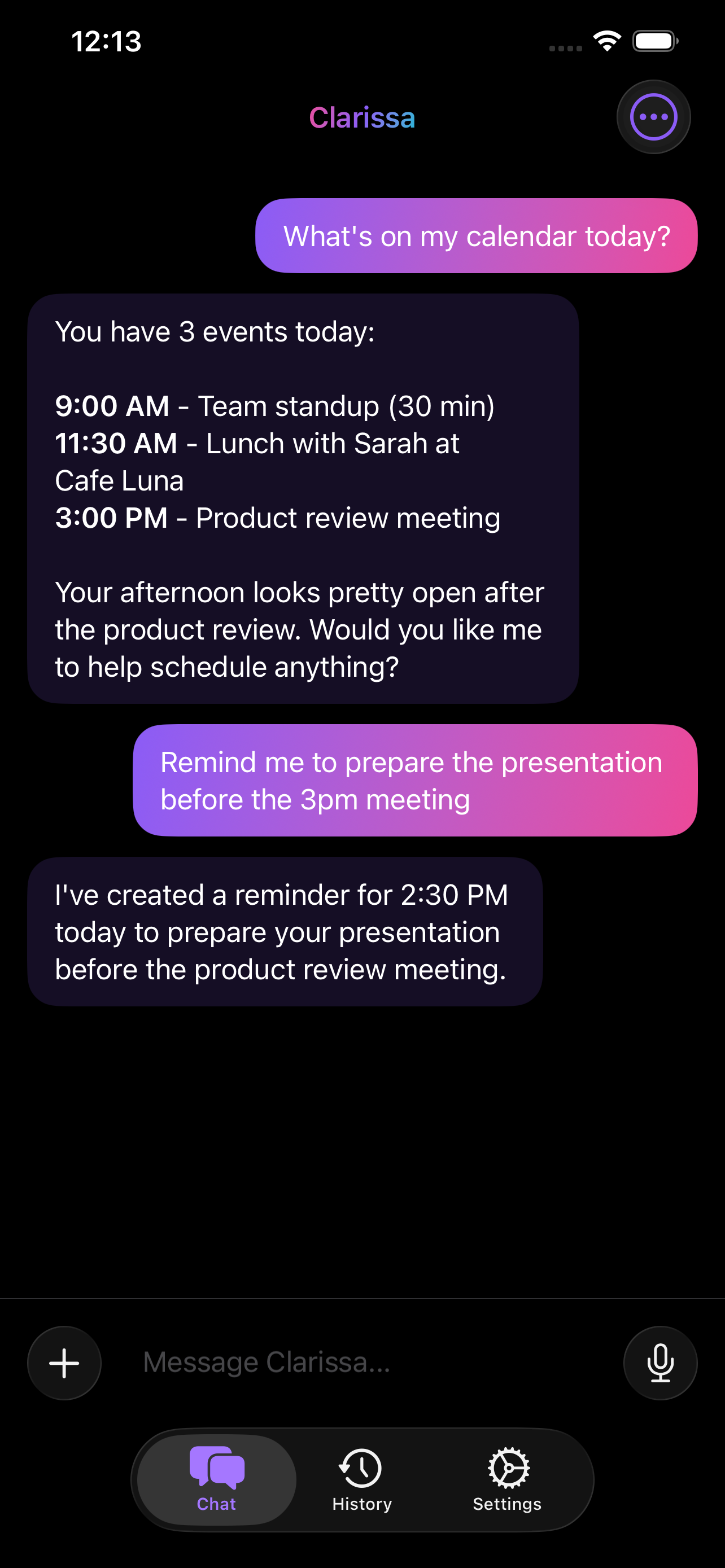
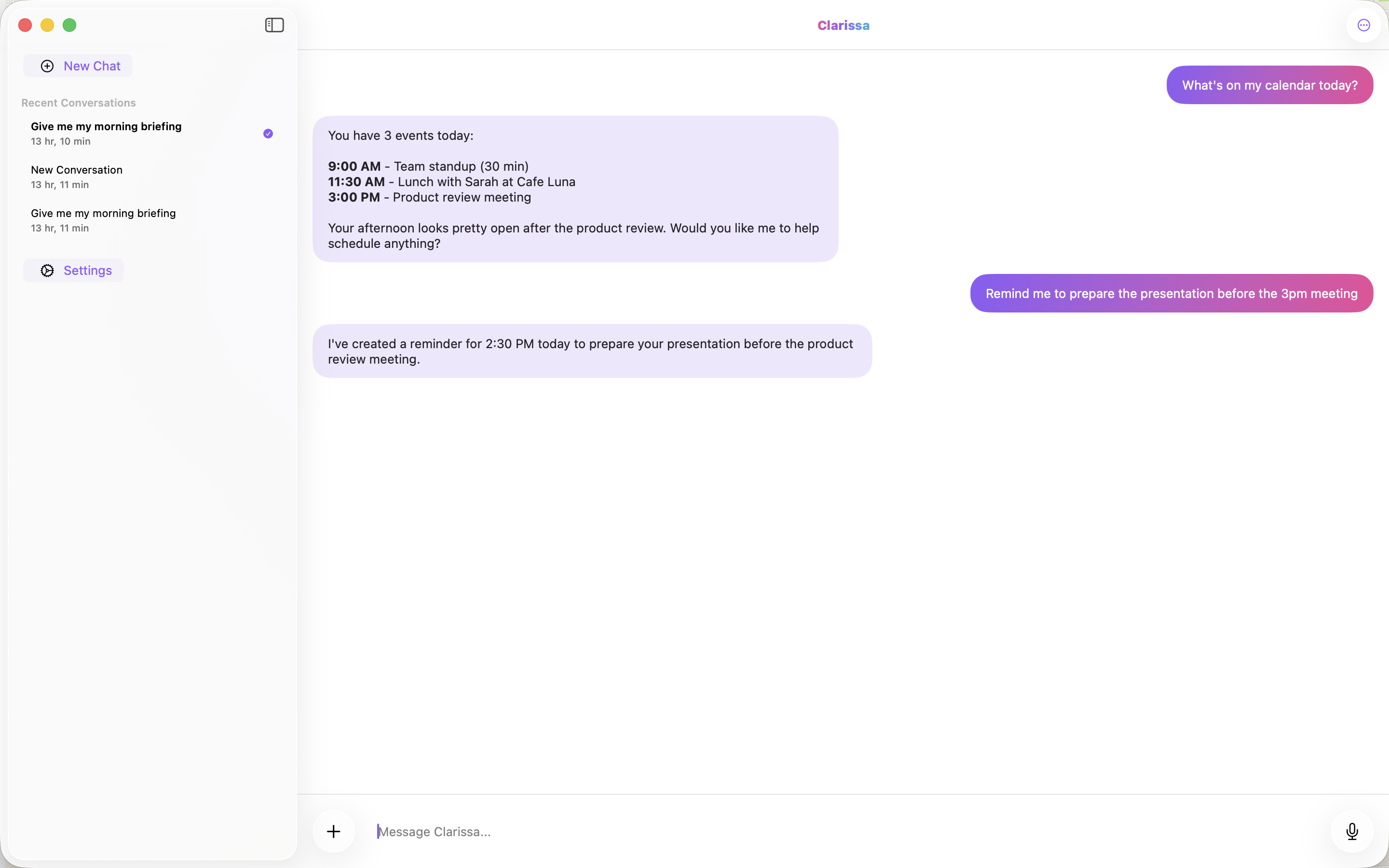
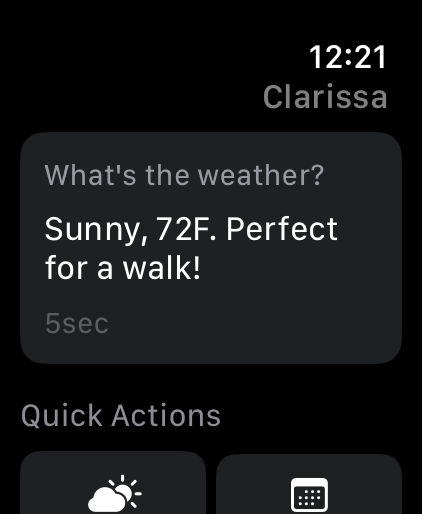
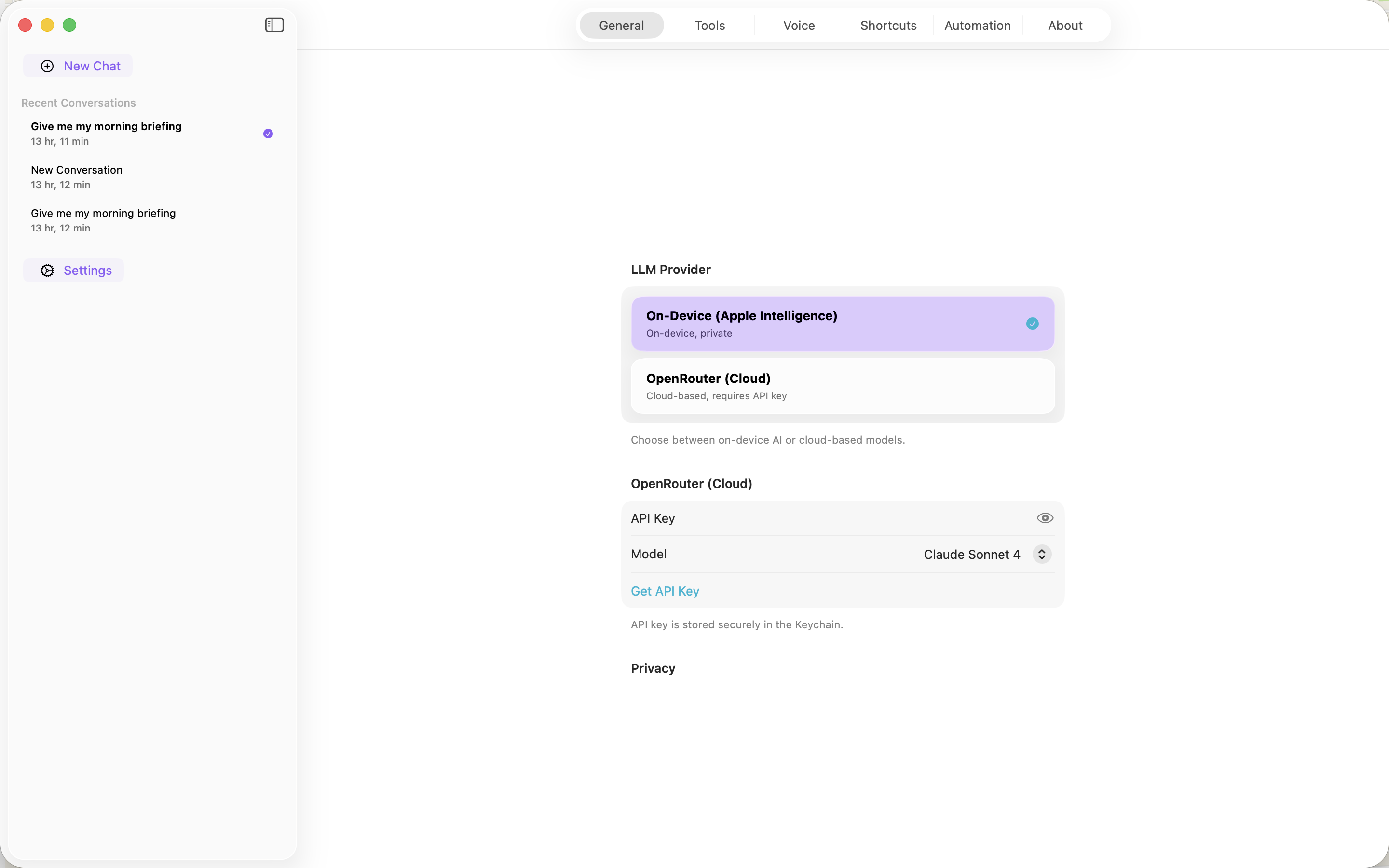
On-Device AI with Apple Foundation Models
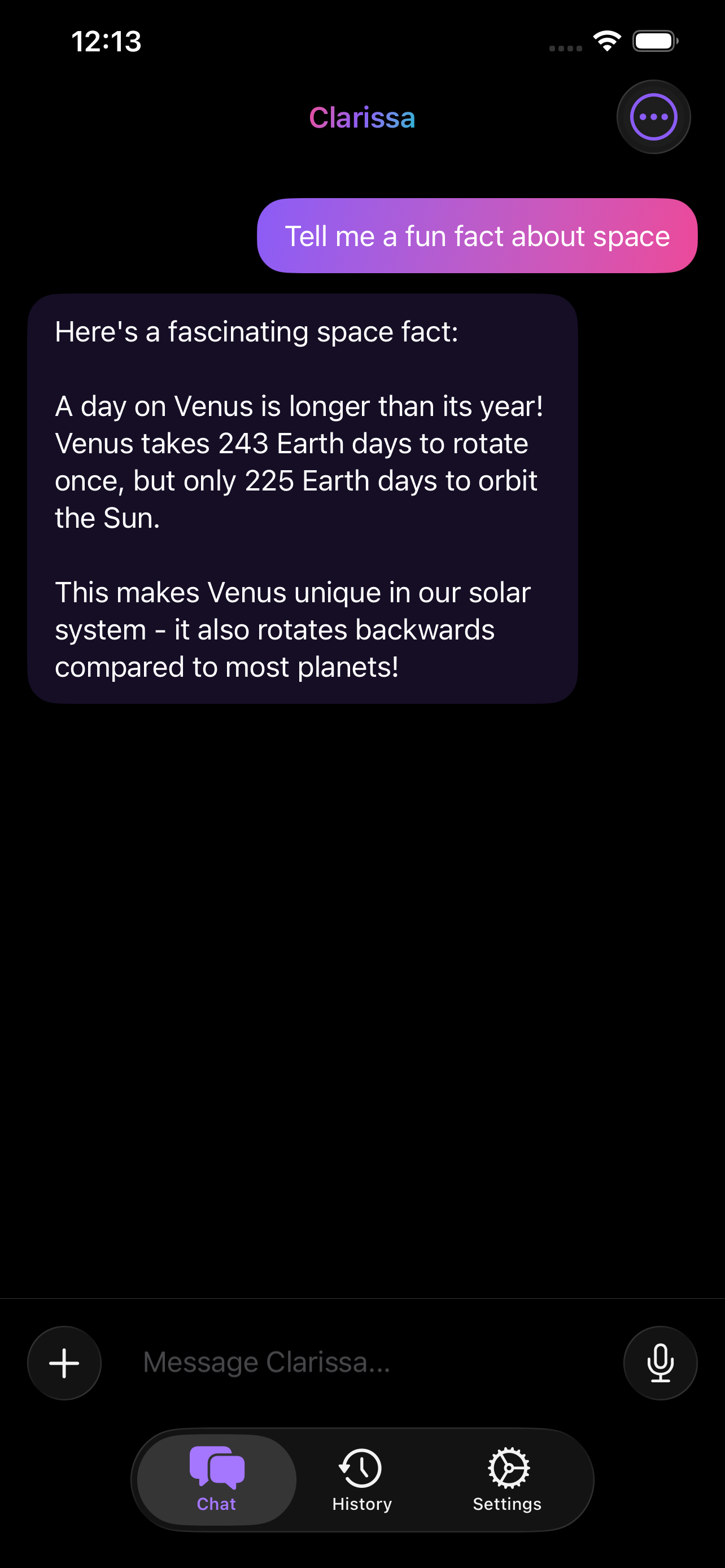
Clarissa uses Apple's Foundation Models framework for completely private, on-device AI:
- Privacy-first — All processing happens on your device
- No internet required — Works offline after initial setup
- Native tool calling — Tools execute through Apple's native API
- Fast responses — Optimized for Apple Silicon with model prewarming
- Private Cloud Compute — Seamless fallback to Apple's privacy-preserving server inference (with consent toggle)
- Provider fallback — Suggests OpenRouter when Foundation Models encounters an error
Conversation Templates
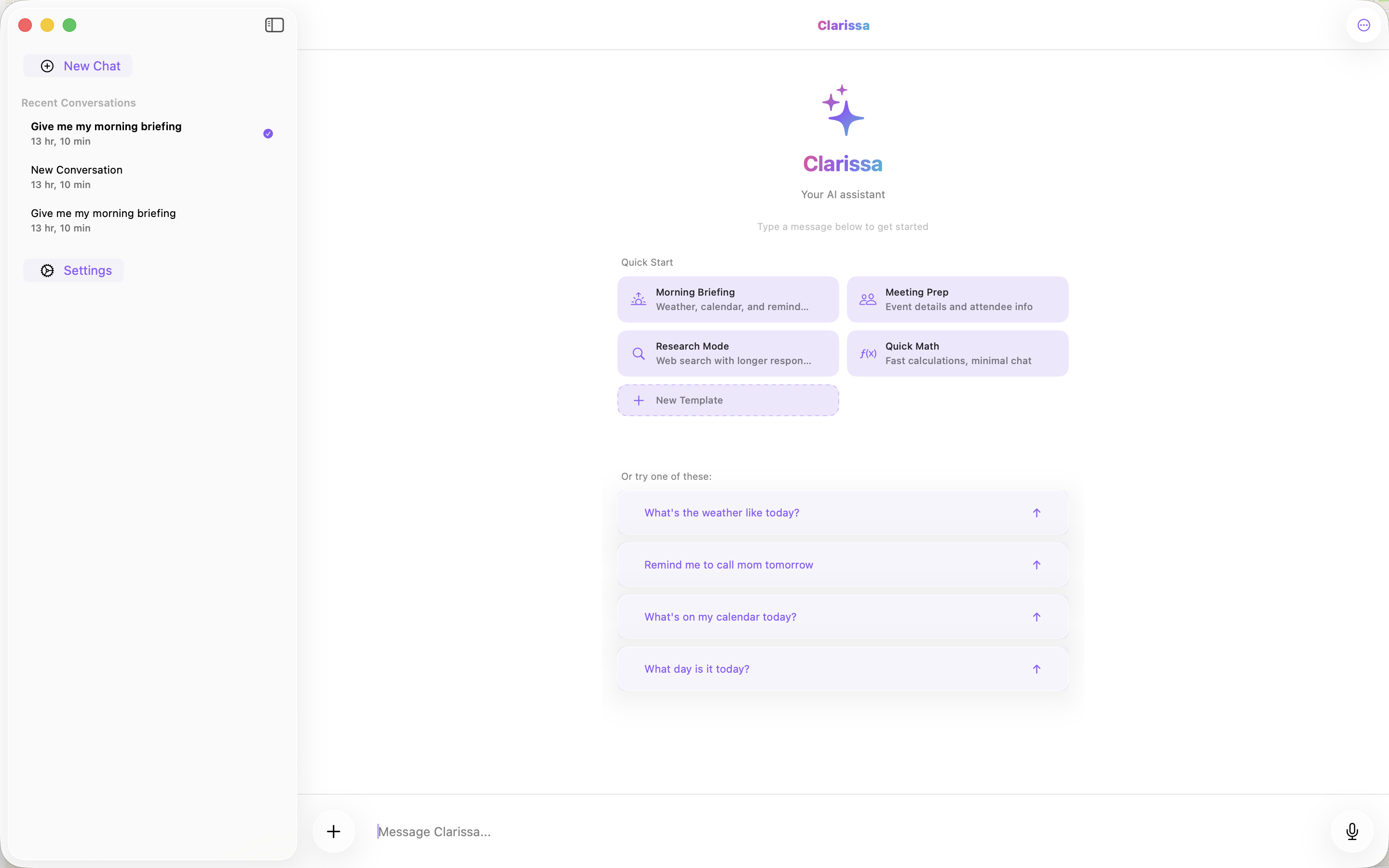
Pre-built conversation starters with specialized system prompts, pre-enabled tools, and response tuning:
- Morning Briefing — Weather + calendar + reminders summary for your day ahead
- Meeting Prep — Event details + attendee info for your next meeting
- Research Mode — Longer responses with web fetch and memory tools
- Quick Math — Minimal context, fast calculator answers
- Custom templates — Create your own with custom system prompts, tools, and response hints
Templates are available from the empty-state picker in chat, via Siri shortcuts ("Morning Briefing with Clarissa"), and as Apple Watch quick actions.
Proactive Intelligence
When enabled in Settings, Clarissa detects intent in your messages and prefetches relevant data before the agent responds:
- Weather detection — Keywords like "cold", "rain", "weather" trigger a weather prefetch
- Schedule detection — Time patterns like "tomorrow", "at 3pm" trigger a calendar prefetch
- Parallel prefetch — Multiple intents detected simultaneously with a 2-second timeout
- FM-only — Only activates with on-device Foundation Models (no API cost)
Note: This feature is opt-in and disabled by default. Enable it in Settings under "Proactive Context."
Edit, Regenerate & Error Recovery
Easily recover from dead ends without starting over:
- Edit & Resend — Long-press any user message to edit and resend from that point
- Regenerate — Long-press any assistant message to regenerate the response
- Undo — One-level undo with ephemeral snapshot and banner
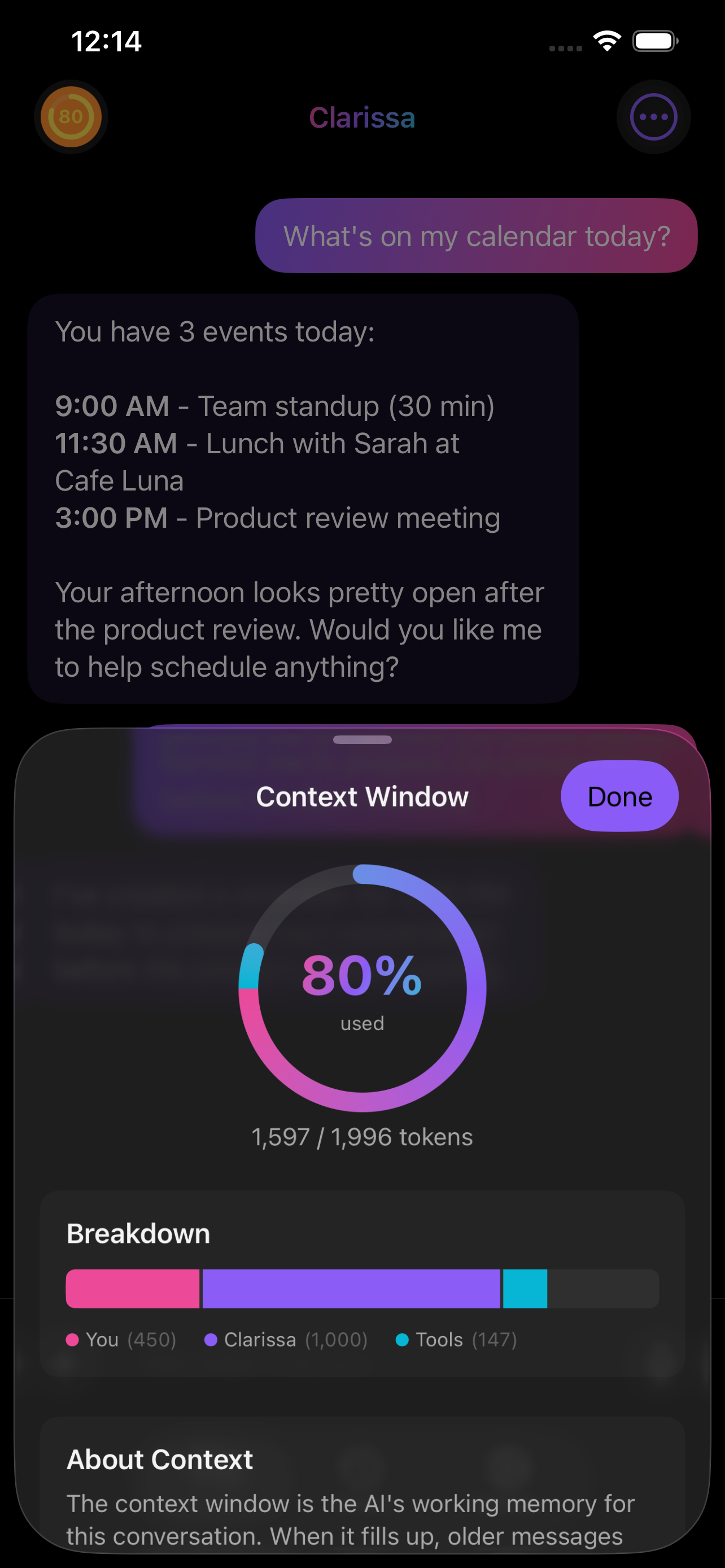
- Auto error recovery — When the context window is exceeded, Clarissa automatically summarizes the conversation and retries
- Manual summarize — Tap "Summarize conversation" in the context indicator to proactively manage context
Agent Visibility
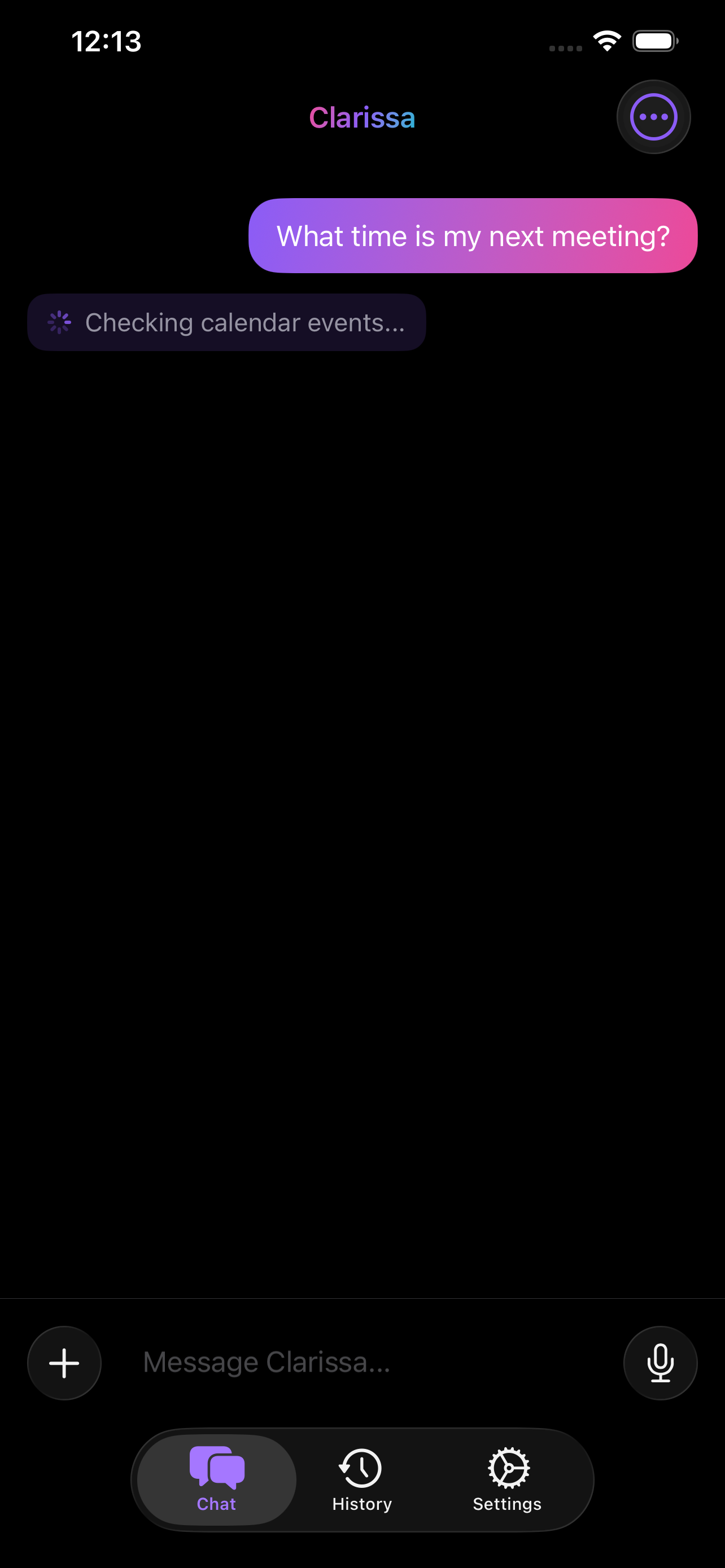
See exactly what Clarissa is doing during multi-tool execution:
- Tool plan view — Step-by-step progress displayed inline in chat
- Live Activity — Dynamic Island and Lock Screen show real-time plan progress
- Human-readable steps — Tool calls are translated to descriptions like "Checking your calendar..."
Voice Input
Speak naturally to Clarissa using built-in speech recognition:
- SpeechAnalyzer (iOS 26+) — Dramatically faster and more accurate transcription
- Tap the microphone button to start dictation
- Speak your prompt naturally
- Tap again to stop and send
- Legacy fallback to SFSpeechRecognizer on older devices
Siri Shortcuts Integration
Clarissa exposes App Intents for use with Siri and the Shortcuts app:
"Ask Clarissa"
Invoke Clarissa with your voice:
- "Hey Siri, ask Clarissa how to center a div"
- "Hey Siri, talk to Clarissa"
Template Shortcuts
Start a specific template via Siri:
- "Hey Siri, Morning Briefing with Clarissa"
- "Hey Siri, Meeting Prep with Clarissa"
- "Hey Siri, Research Mode with Clarissa"
- "Hey Siri, Quick Math with Clarissa"
Follow-Up Conversations
Siri supports 5-minute follow-up sessions for back-and-forth conversation without repeating the trigger phrase.
Custom Shortcuts
Build your own automations in the Shortcuts app. Chain Clarissa with other actions to create powerful workflows.
Native Tools
The Apple version includes tools deeply integrated with iOS and macOS frameworks:
- Calendar — Create, list, and search events with deep links to Calendar.app and Maps (EventKit)
- Contacts — Search and view contacts with tap-to-call, message, or email actions
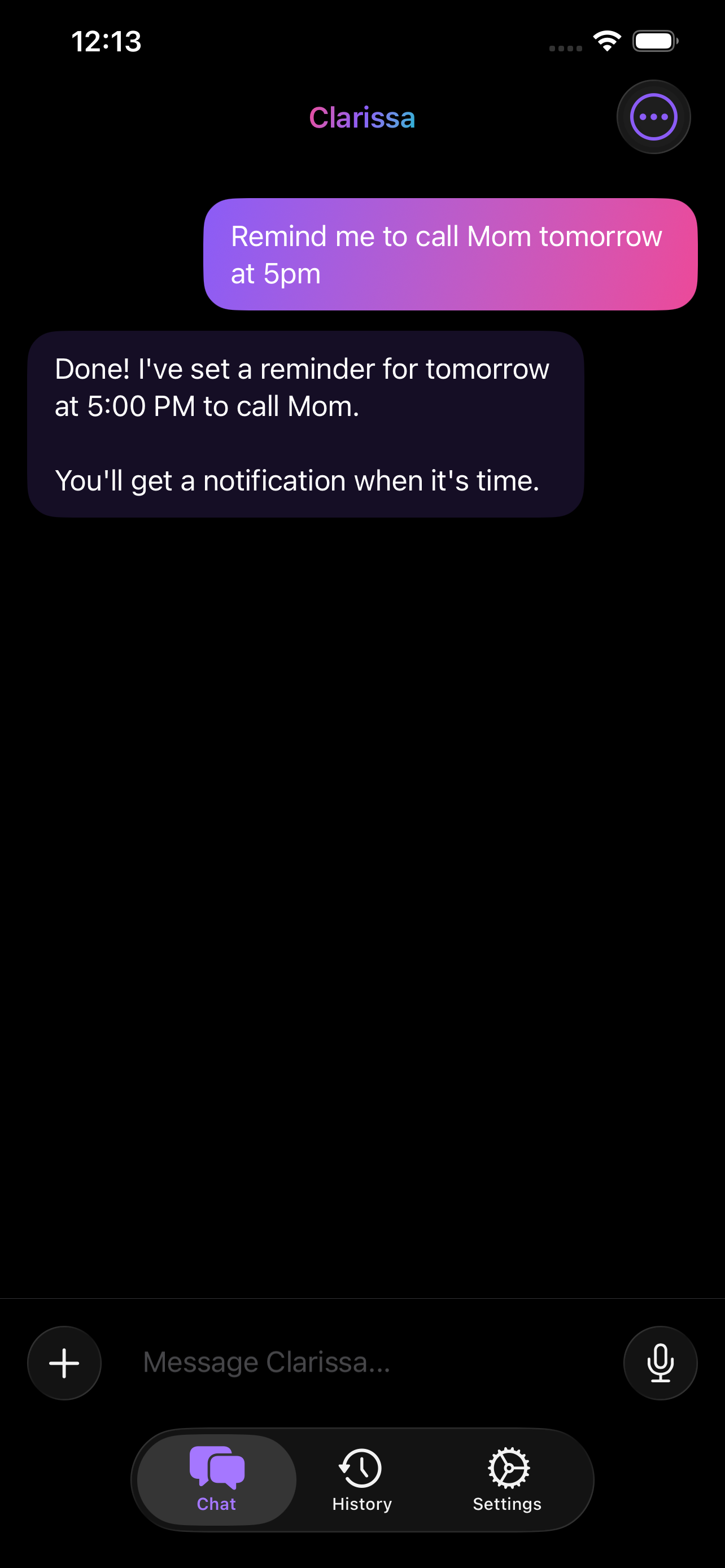
- Reminders — Create, list, and complete reminders (EventKit)
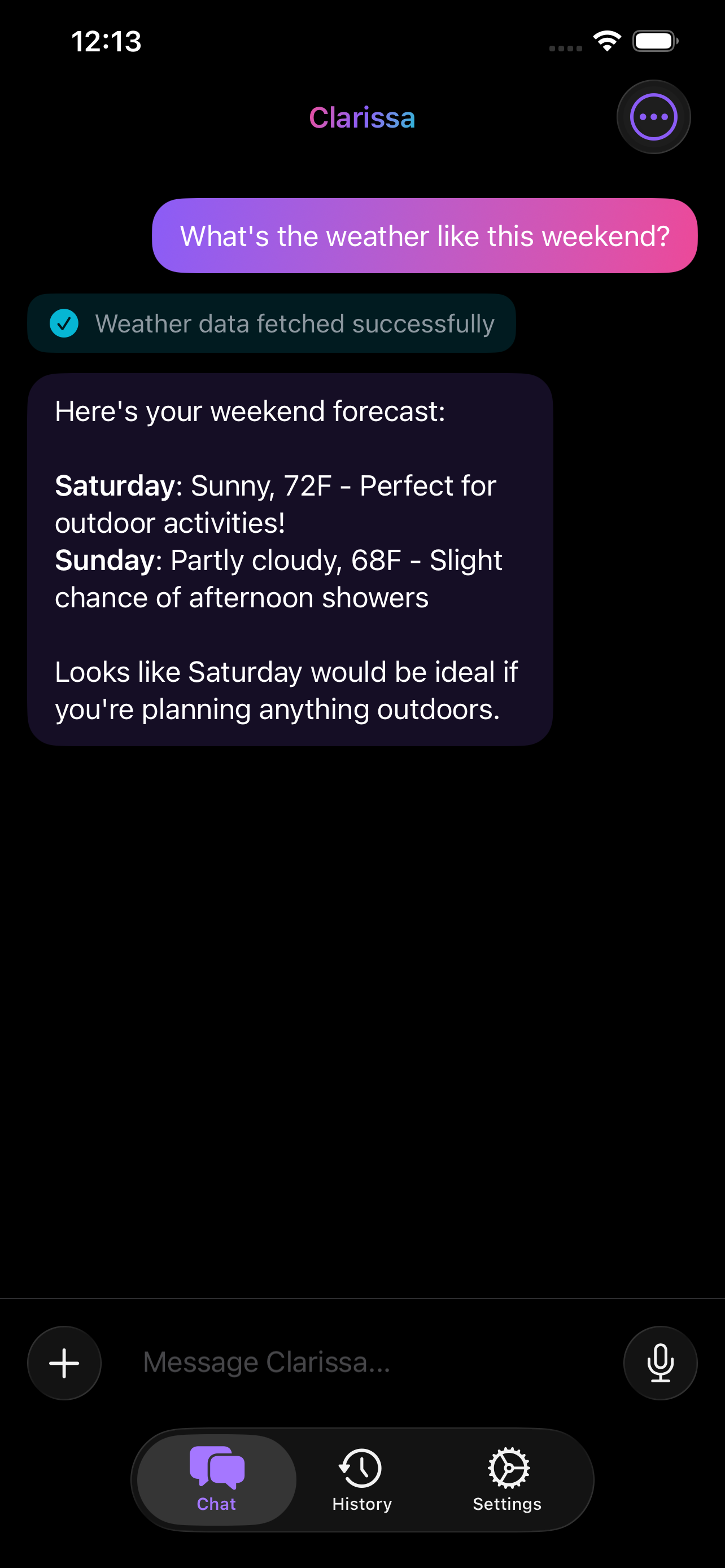
- Weather — Current conditions and forecast with expandable hourly/daily charts (WeatherKit + Swift Charts)
- Location — Get current position with reverse geocoding (CoreLocation)
- Web Fetch — Retrieve and parse web content with preview cards
- Calculator — Mathematical calculations with copy-to-clipboard
- Remember — Store information with auto-tagging, categories, and confidence scoring
- Image Analysis — OCR, object detection, face detection, AI descriptions (Vision + Foundation Models)
- Document OCR — Full-document recognition, PDF extraction, handwriting (Vision)
Tool Chains
Chain multiple tools together into reusable, multi-step workflows with output piping:
- Argument piping — Reference previous step outputs with
$N.pathsyntax (e.g.,$1.temperature) - Built-in chains — Travel Prep, Daily Digest, Meeting Context, and Research & Save
- Custom chains — Create your own with the chain editor: reorder steps, pick icons, mark steps optional
- Preview & approve — See planned steps before execution; skip optional steps or cancel
- Progress tracking — Real-time step-by-step progress displayed inline in chat
- Shortcuts integration — Run any saved chain from the Shortcuts app with the "Run Tool Chain" action
Shortcuts Actions
8 standalone Shortcuts actions let you use Clarissa's tools directly in any automation:
- Get Weather — Current conditions and forecast for any location
- Get Calendar Events — Upcoming events for a date range
- Create Reminder — Add reminders with title, date, and notes
- Search Contacts — Find contacts by name
- Calculate — Evaluate math expressions
- Fetch Web Content — Retrieve and parse any URL
- Save to Memory — Store information in Clarissa's long-term memory
- Get Current Location — Your current position with address
- Run Tool Chain — Execute any saved tool chain
All actions return values that can be piped into other Shortcuts actions for powerful automations.
Automation Triggers
Run tool chains automatically based on context:
- Time-of-day — Schedule chains to run at specific times (e.g., Daily Digest every morning)
- Location — Trigger chains when arriving at or leaving a location
- Focus mode — Run chains when a Focus mode activates (e.g., Work Focus triggers Meeting Context)
Configure triggers in Settings under Automation. All triggers are managed by the AutomationManager and persist across app launches.
Smart Notifications
Clarissa proactively notifies you with contextual, actionable alerts:
- Scheduled check-ins — Set per-day check-in times; Clarissa runs your chosen chain and delivers results as a notification
- Calendar alerts — Get notified before meetings with attendee count and context, powered by EventKit scanning
- Memory reminders — Detects time-sensitive patterns in your memories (e.g., "follow up by Friday", "check this week") and reminds you
Notification actions include Reply (text input), Snooze (1 hour), Open, and Dismiss.
Widgets
Glanceable information on your Home Screen and Lock Screen:
- Morning briefing — Weather + next event + top reminder, updated on a timeline schedule
- Memory spotlight — Surfaces contextual memories scored by confidence, time-of-day relevance, and recency
- StandBy card — Rotating contextual info optimized for StandBy mode on iPhone
- Live Activity — Dynamic Island and Lock Screen show real-time progress during multi-tool execution
Session Intelligence
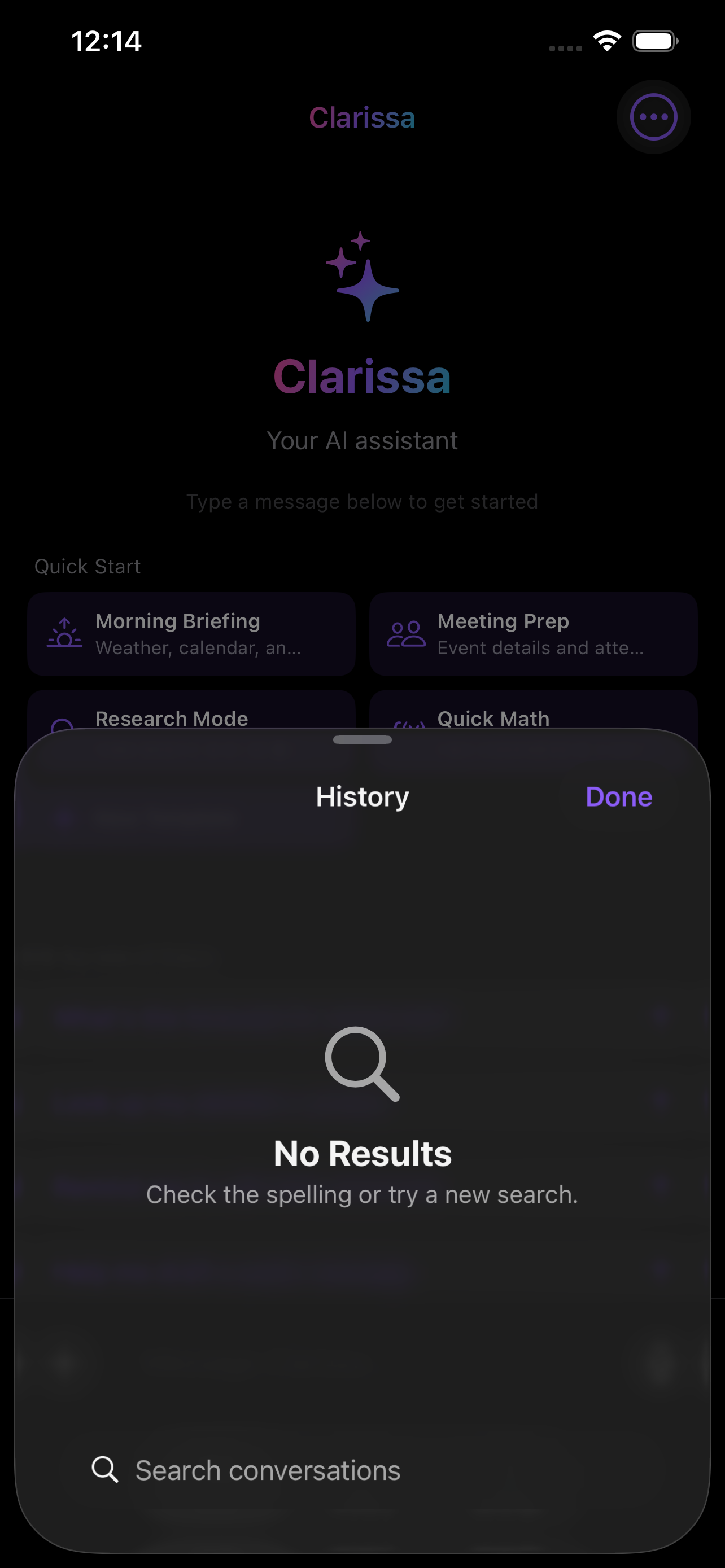
Organize and navigate your conversations with powerful session features:
- Pin messages — Long-press to pin important messages; pinned messages appear in a strip above the conversation
- Tags — Manually tag sessions or let Clarissa auto-detect topics from your conversation
- Favorites — Star sessions with a swipe action; filter your history to show favorites only
- Enhanced search — Search across session titles, summaries, tags, and message content
- Session summaries — AI-generated summaries for quick browsing of past conversations
Offline Mode
Clarissa works even without a network connection:
- Network monitoring — Detects connectivity changes and displays an offline banner
- Cached tool results — Recently fetched weather, calendar, and other data remain available offline
- Stale data indicators — Clearly marks when displayed data may be outdated
- On-device AI — Foundation Models work entirely offline after initial setup
Export & Sharing
Share conversations in multiple formats:
- PDF export — Export conversations as styled PDF documents
- Share as image — Long-press any assistant message to share as an image
- Code block copy — Copy code blocks with syntax highlighting
- Markdown export — Export conversation history as Markdown text
Share Extension
Share content from any app directly to Clarissa:
- Share text, URLs, or images from Safari, Notes, Mail, and more
- Shared content appears in a new conversation for immediate processing
- Chain triggers — Attach a tool chain to shared content and run it with one tap from the banner
- Uses App Group storage for seamless handoff to the main app
Session Management
Conversations are automatically saved and organized:
- Auto-save — Never lose a conversation
- Title generation — AI-generated titles for easy browsing
- History sidebar — Quick access to past conversations
- Search & filter — Search conversation history by date and topic
- Resume anytime — Pick up where you left off
Long-Term Memory
Clarissa remembers important information across conversations with an intelligent memory system:
- Categories — Facts, preferences, routines, and relationships
- Confidence scoring — Memories decay when unused and boost when accessed
- Relationship linking — Related memories are connected for richer context
- Relevance ranking — Multi-factor retrieval weighted by topic, confidence, recency, and category
- iCloud sync — Memories sync across devices with timestamp-based conflict resolution
- Memory review — Manage memories in Settings with category badges and confidence indicators
Streaming Responses
Watch responses appear in real-time as the AI generates them. Tool executions are displayed inline so you can see exactly what Clarissa is doing, with step-by-step progress in the chat UI and Dynamic Island.
Liquid Glass Design
The app embraces Apple's latest design language:
- Translucent materials — Beautiful glass effects throughout
- Adaptive layout — Optimized for iPhone, iPad, and Mac
- Dark mode — Full support for system appearance
- Dynamic Type — Respects your text size preferences
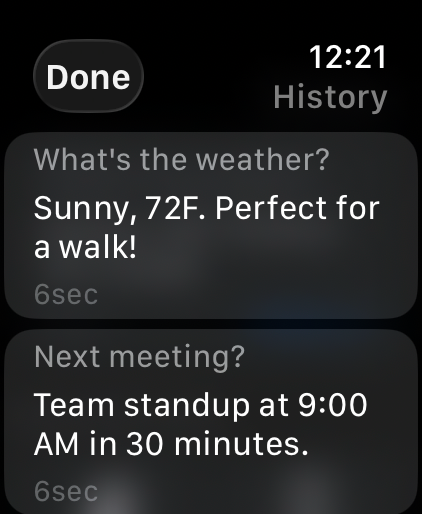
Apple Watch Companion
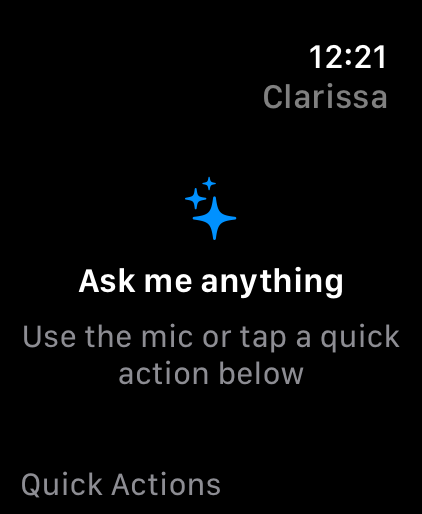
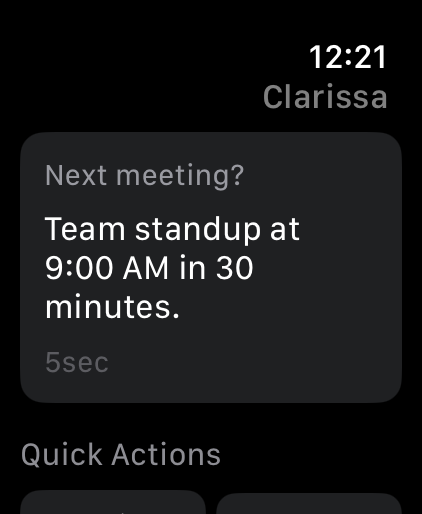
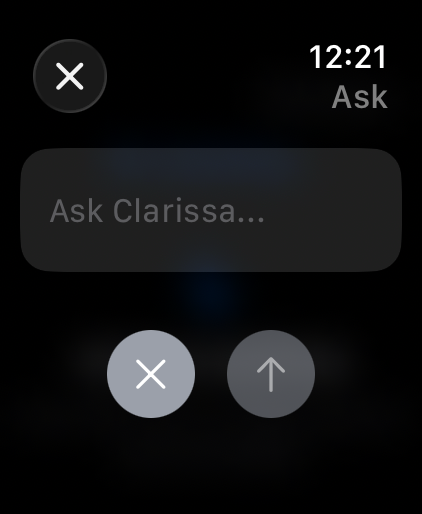
A voice-first watchOS companion with:
- Voice queries — Ask questions directly from your wrist
- Quick actions — Morning Briefing and Meeting Prep templates
- Response history — View recent responses
- Complications — Quick launch from watch faces
macOS Features
On macOS, Clarissa includes additional platform-specific features:
- Menu bar commands — File and Edit menus with keyboard shortcuts
- Settings window — Standard macOS preferences (⌘,)
- Keyboard shortcuts — ⌘N for new conversation, ⇧⌘⌫ to clear
- Resizable window — Works at any size
Next Steps
- Check the FAQ for troubleshooting
- Return to Getting Started